Showing posts with label Pogo Customer Support. Show all posts

Thursday, 26 April 2018

How to configure a generic USB gamepad natively in Dead Space 2


Please note, you won't be able to configure the gamepad with the in-game controls menu.

Game Pad Configuration
----------------
For game pads which do not exhibit correct behavior, a custom configuration can be used to specify the actions that each button and joystick should be associated with. The file must be called joypad.txt and be located in the Dead Space™ 2 installation directory. An example file is located in that directory named joypad_example.txt. You can use this file by renaming it to joypad.txt.

In order to change the behavior of your game pad, you will need to change the value for the button and joystick axis entries. In order to find the correct values for these entries, first navigate to the ‘Game Controllers’ item in Control Panel with the game pad connected to the computer. Next select the game pad from the ‘Installed game controllers’ list and click the ‘Properties’ button. The Properties window should be displayed which will allow you to determine what the number of each of your game pads buttons is as well as the name of each of the joystick axes.

Buttons must be assigned a value of ‘Button.#’ where # is the number of the button.
For joystick axes, they must be assigned a value from the following list:
X-Axis
Y-Axis
Z-Axis
Z-Rotation
Throttle
Rudder
X-Axis.Inverted
Y-Axis.Inverted
Z-Axis.Inverted
Z-Rotation.Inverted
Throttle.Inverted
Rudder.Inverted
This list corresponds to the common axes that are used by game pads, as well a variant of each axis which is flipped or inverted.

After setting each of the button and joystick axis values, and renaming the file joypad.txt, when you start Dead Space™ 2 the configuration will be loaded. If a mistake has been made and the value of any of the buttons or joystick axes isn’t recognized, that button or joystick axis will do nothing in game.

Below is the original content of joypad_example.txt:

Quote:


Originally Posted by joypad_example.txt

Pad.RightDPad.Left = Button.4
Pad.RightDPad.Down = Button.3
Pad.RightDPad.Right = Button.2
Pad.RightDPad.Up = Button.1

Pad.Trigger.LeftTop = Button.7
Pad.Trigger.LeftBottom = Button.5
Pad.Trigger.RightTop = Button.8
Pad.Trigger.RightBottom = Button.6

Pad.Start = Button.10
Pad.Back = Button.9

Pad.LeftStick.Click = Button.11
Pad.RightStick.Click = Button.12

Pad.LeftStick.X = X-Axis
Pad.LeftStick.Y = Y-Axis.Inverted

Pad.RightStick.X = Z-Axis
Pad.RightStick.Y = Z-Rotation


Call Us +1-855-517-2433 (Toll Free)


Monday, 29 May 2017

Vaults of Atlantis Slots pogo game


Unlock treasures in Vaults of Atlantis Slots, a free online multi-line slots game!

Tex spent months searching for the Vaults of Atlantis and he's finally hit the jackpot. It's up to you to help him unlock the vaults by making winning combinations. But beware! Danger lurks in the depths of the ocean
Treacherous Obstacles: Avoid the dangerous creatures or your tokens will be returned to the vaults
Line 'em up!: Unlock the vaults by lining up three or more treasure chests
Bonus Game: Match three Vault symbols to advance Tex Carter to the bonus game
Choose how many lines you wish to play. Vaults of Atlantis features 9 unique lines, extending from left to right in different patterns across the reels.
Place your bet (per line) by clicking either BET ONE or BET MAX. BET ONE will increase your bet by 1 Token each time you press it. BET MAX will bet 5 Tokens per line. (If you have less than 45 tokens, BET MAX will bet 5 Tokens on as many lines as you can afford to play.)
If you clicked BET ONE in Step 1, click on the "Play" button in the lower-right side of the screen to spin the reels. If you clicked BET MAX in Step 1, the reels will spin automatically.
Watch to see if you get a winning combination! To get a winning combination, symbols must line up in order from left to right on the pay line, starting from the first reel.
If you get 3 or more Treasure Chest symbols in a row starting from the first reel, you'll enter a Bonus Game room! Click on the Treasure Chests to reveal hidden treasure!
Once inside the vault, Tex can open as many Treasure Chests as there were Treasure Chest symbols on the pay line. After the game is complete, Tex exits the current vault and appears at the entrance to the next vault.
After exiting the fourth Treasure Chest vault, Tex will stand next to the stairs leading to the Atlantis Vault bonus game, and the Treasure Chest symbols will be replaced by the Atlantis Vault symbols. Matching 3 Atlantis Vault symbols will cause Tex to climb the stairs and play the Atlantis Vault bonus game.
In the Atlantis Vault bonus slots game, you can click on any "?" Panel available to reveal a bonus. For each successful selection, the bonus multiplier will increase by 1, and your next selection will be multiplied by that number. However, there are three Shark symbols on the board that will stop your progress if selected. All bonuses earned to that point will be awarded, but no further selections will be possible.
If a Shark, Eel, Swordfish, or Giant Squid symbol lands on the middle position of the 5th reel, Tex will quickly become the center of their attention! Any Tokens that would have been won on that spin will be taken back to the Vaults, but Tex will always come back to keep searching! In addition, any bonus multipliers earned in the Sarcophagus bonus game will be lost.


Pogo Game Support Call Us +1-855-517-2433 (Toll Free)

Tuesday, 2 May 2017

How to cancel Club Pogo subscription

Reason
  • When you cancel your Club Pogo subscription, you can either choose to forfeit all remaining time on your subscription or you can choose to play out your remaining time left on your subscription.
  • If you decide to re-activate your account, you will be billed immediately. There is no free trial on re-activations.

Solution

To cancel your Club Pogo subscription, perform the steps listed below:
  • Go to www.pogo.com
  • Log into your Club Pogo account.
  • Click the My Account button.  
  • You may be asked to re-enter your password (for security reasons)
  • Your screen should look something like this:
  • Click the 'My Subscription and Billing Information' link shown above. 
  • Then your screen should look something like:
  • Click the 'Cancel Subscription' link. 
  • You may be asked to re-enter your password (for security reasons)
  • Re-enter your password.
  • A new screen should appear asking to select a Club Pogo subscription cancellation option:

  • You have two options when cancelling; 1) cancel your subscription and forfeit the rest of your time or 2) you can play out the rest of your time. Please note, your card will not be charged again.
  • Click the 'Continue' button to confirm and cancel your subscription.
For regular (free) Pogo customers, there is no subscription fee, therefore cancellation is not required.


If you would like to disable your EA account (whether it's a paid or free account), which removes access to Pogo & EA sites altogether, you may request to disable your account by clicking the Contact Us button located at the top right of the article or click here. Please include the following information:
    Call Us +1-855-517-2433 (Toll Free)

Monday, 11 August 2014

pogo is being slow

Go to your desktop background (on your computer)
Right click background image,
choose 'properties'
choose 'settings'

What 'screen resolution' are you using?
drag the bar to the right.

If this is already completely across;


What Web Browser/Application are you using?

Internet Explorer, Firefox, Safari...?
You may want to check 'View' setting at the top of your screen.
 

Wednesday, 22 May 2013

I get a runtime error while trying to play Pogo games within AOL Software

If you're receiving the message "Runtime Error" while trying to launch Pogo games within the AOL software, it means that the version of Java installed on your computer might not be compatible with AOL. A quick update to your Java software should fix the problem.
To update your Java software:
1. Click the Start button, move your pointer over Control Panel, and then click Java.

2. On the Java Control Panel window, click the Update tab at the top and then click Update Now at the bottom.

3. On the Java Update window, click Install.

4. On the Java Setup window, click Install.

Note: You'll need to close any applications running Java for the update to begin.
5. Once the update is complete, click Close.

Note: This will close and restart your browser.

6. Once your browser restarts, click the red Verify Java Version button to make sure you have the recommended Java installed.


Post a Question....

Call Us +1-855-517-2433 (Toll Free) 

Wednesday, 1 May 2013

Cannot connect to Pogo games with Runtime Error.


Click on the links below for information regarding issues you may be having. Hopefully, one of the following Help articles will solve your problem.
Issues with Pogo games

Try again later

System/server maintenance could be the reason for the issue that you are currently facing. Please wait for a while, and then try accessing Pogo games again. If you continue having issues with the Pogo games website (and other websites work normally), please visit http://www.techbuddiesonline.com/Pages/Pogo_technical.aspx   Support website for more information. If you have issues with other websites as well, try the next solution to resolve the issue.

Enable only essential startup programs

Multiple programs may have been set to start automatically when a computer is turned on. These programs may cause the computer to slow down. Not all startup programs are essential for the proper functioning of your computer. Click the link corresponding to the version of Windows installed on your computer to know how to enable only essential startup programs on your computer.
If you are using Windows 2000/Me/98, you will have to manually close all the programs currently running on your computer to resolve the issue. Please click the link corresponding to the version of Windows you have on your computer for instructions to close all programs.

Delete browser cache and rebuild AOL Adapter

AOL Adapter connects the AOL software to Internet Explorer. Any damage to the adapter can adversely affect the AOL service and your access to the web. The steps to delete the browser cache and rebuild AOL Adapter may differ depending on the version of ACS installed on your computer. Please click the appropriate link given below.

Browser/service error when accessing Pogo games

Turn on the AOL TopSpeed

Once installed, the TopSpeed technology works automatically. You do not need to change any settings to experience the enhanced browsing that the TopSpeed technology provides. The only time TopSpeed is turned off by default is if it is blocked by a firewall or there is insufficient space for the TopSpeed cache.
Note: The TopSpeed/AOL Web Graphics Compression feature on AOL 9.0 VR is always on. It cannot be turned off or uninstalled, the AOL software will not function properly without it.
To turn on TopSpeed in AOL Desktop, do the following:
1. On the Browser window, click the Settings menu, and then click TopSpeed.
2. Click the Use TopSpeed when available box to place a check mark in it.
3. Click Save.

To turn on TopSpeed in AOL 9.0 Security Edition, do the following:
1. On the AOL toolbar, click Settings.
2. On the Index tab, click the Internet (Web) Options link.
3. Click the TopSpeed tab.
4. Click to the Turn on AOL TopSpeed box to place a check mark in it to turn TopSpeed on.
5. Click Save.
6. Click X in the upper right to close the settings window.

To turn on TopSpeed in AOL 9.0 SE/LE, do the following:
1. On the AOL toolbar, click Settings.
2. On the Index tab, click the Internet (Web) Options link.
3. Click the TopSpeed tab.
4. Click the Optimize Web browsing using TopSpeed technology box to place a check mark in it to turn TopSpeed on.
5. Click Save.
6. Click X in the upper right to close the settings window.

To turn on TopSpeed in AOL 9.0 Optimized, do the following:
1. On the AOL toolbar, click Settings.
2. On the Index tab, click the Internet (Web) Options link.
3. Click the AOL Browser tab.
4. In the TopSpeed - AOL Web Browser Accelerator section, turn TopSpeed on. Choose the Store Web pages I view on AOL for faster browsing option by clicking it to turn TopSpeed on.
5. Click OK.
6. Click X in the upper right to close the settings window.


Clear cache, cookies, and history and reset Web settings

Whenever you visit websites, temporary Internet files and cookies are stored on your computer to record your return visits. Sometimes, these temporary Internet files and cookies can cause the issue that you are currently experiencing. Similarly, your history list can also be a concern. The more the number of days you have specified for pages to be saved on your history list, the greater is the disk space used on your computer. You can free up the disk space by clearing this list.
Note: Once you clear your cookies, cache, history, and footprints, you may lose the following:
  • AOL Radio presets
  • websites you have visited
  • Your shopping cart
  • Your customized pages

Problems while accessing pogo games

Try another Web page

Try opening another Web page to verify whether the problem is with the Pogo games website, your Web browser, or your connection. To do so, type the address of another Web page (for example, www.techbuddiesonline.com) in an external browser and verify whether you are able to access that Web page.
If you are unable to visit any other website, read our online help article Unable to access websites to resolve the issue.

Clear cookies, cache, and history using browser

Whenever you visit websites, temporary Internet files and cookies are stored on your computer to record your return visits. Sometimes, these temporary Internet files and cookies can cause the issue that you are currently experiencing. Similarly, your history list can also be a concern. The more the number of days that you have specified for pages to be saved on your history list, the greater is the disk space used on your computer. You can free up the disk space by clearing this list.
Note: Once you clear your cookies, cache, and history, you may lose the following:
  • AOL Radio presets
  • The websites you have visited
  • Your shopping cart
  • Your customized pages

Reset Web settings

If you have installed another Web browser after installing Internet Explorer, some of your Internet Explorer settings may have changed. However, you can reset your Internet Explorer to its default settings. The home page, the search pages, and the default browser will be reset without changing the settings of the other browsers on your computer. Please click the appropriate link from the options given below to reset your Web settings.

Rebuild AOL Adapter

AOL Adapter connects the AOL software to Internet Explorer. Any damage to the adapter can affect the AOL service and your access to the Web. You can fix the damage by rebuilding AOL Adapter.

Run Quick Restore

The Quick Restore feature allows you to reset the AOL software to the default state by deleting all the updates downloaded in the past. It can help resolve issues that you may have with your AOL software without having to reinstall the software.
Once Quick Restore is completed, you will receive a series of AOL software updates. To learn more about AOL software updates, read our online help article AOL software update.
Read More...
 Call Pogo Support +1-855-517-2433 (Toll Free)

Monday, 18 March 2013

how to play Turbo 21™ pogo game


Put it into high gear with Turbo 21!   
Hit, hit, hooray. It's Turbo 21, one of the most exciting free casino games online. And you can only find it at Pogo.com. Turbo 21 is a fast-paced card game that puts you in the driver's seat. Test your speed and skill as you play four hands of 21 at once. That makes this Pogo game four times the fun!
Key features:
  • Blackjack Express! Play against the clock in this turbo charged version of the classic card game.
  • Big Payout: Score tokens for finishing fast, but rake in a bigger payout by creating thirteen 21 combinations within the allotted time.
  • Bonus Game: Make as many 21's as you can in 30 seconds to win the bonus round.
  • Lightning Bolt Power-Up: Activate one of three power-ups for your next game including a card peek and extra time.

Word Whomp™ pogo


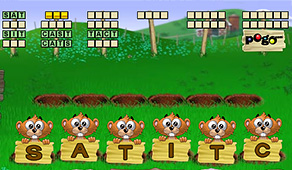
Witty word games like Word Whomp will make you go wild. This Pogo favorite challenges you to whomp adorable gophers and spell as many words as you can from a given set of letters before the clock runs out. Gophers will dig up veggies and bonuses as you unscramble words. Reach the carrot to enter the bonus round and score big!
Use Your Words Make as many words as you can from the six letters in the middle of the screen
Watch the Clock! Speed's the key in this addicting word games. Form words as fast as you can before the clock runs out.
Word Power Spelling words will advance the digging gopher towards the veggies and token bonuses
Read more...

any Kind of Pogo Game Problems Call Us
+1-855-517-2433 (Toll Free)

Thursday, 7 March 2013

How does the unlock process work? How long can I access the unlocked games?


You can unlock three 30 minute sessions of game play every day. You can play your favorite game or you can play up to 3 different games a day. You can get unlimited access to these games by joining Club Pogo. 

Will this unlock all of Club Pogo?

No, the exclusive game unlocks apply to the selected games only. You can get unlimited access to the selected games by joining Club Pogo. 
  • 40+ Exclusive Games with no Ads 
  • Collect game ranks and badges for your gameplay 
  • Member discounts 
  • Earn Renewal Rewards 

Call Us +1-855-817-2433 (Toll Free)

How to configure a generic USB gamepad natively in Dead Space 2

Please note, you won't be able to configure the gamepad with the in-game controls menu. Game Pad Configuration ---------------- For...